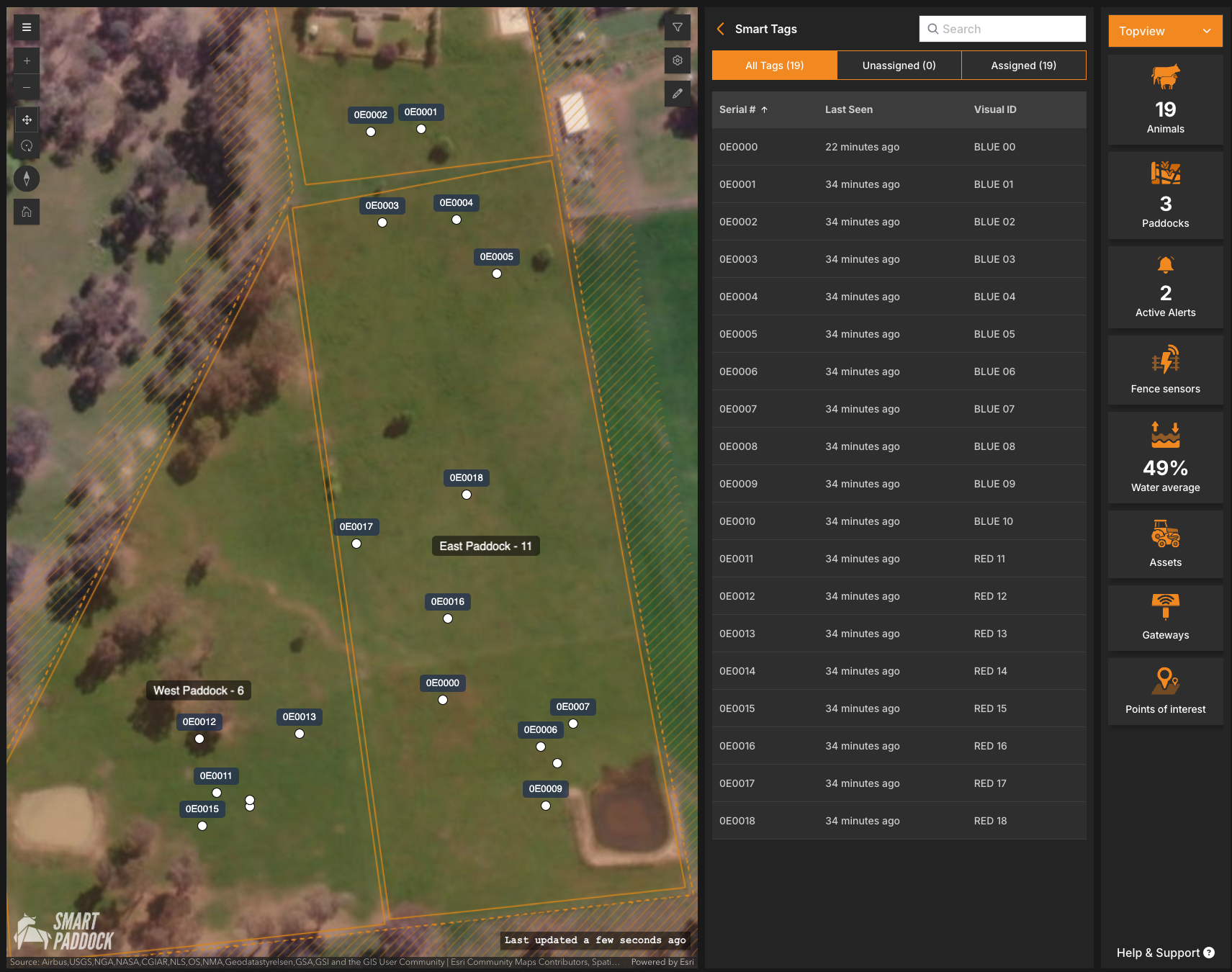
Smart Paddock Pulse - Manage Animals
Creating an Animal
To add an animal, you can click on the “Animals” widget in the sidebar to view your animal list. At the top of the list there’s an “Add Animal” button:
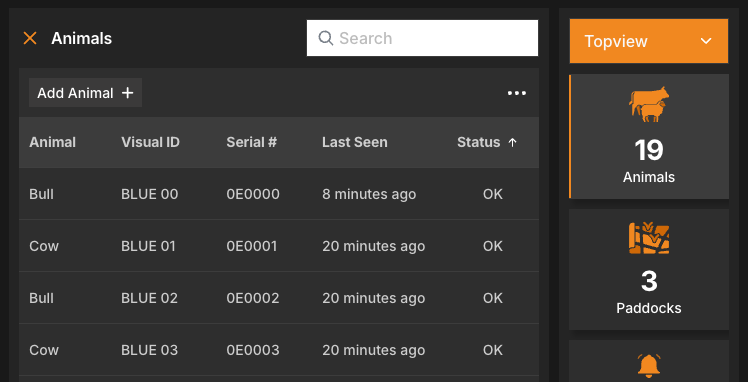
On the next screen you can provide the animal’s information:
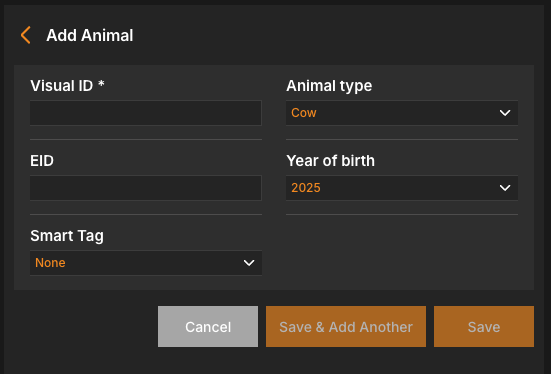
If you have already tagged the animal (or know which tag you’re going to use) you can select the tag from the Smart Tag dropdown, otherwise it can be left as “None”. All of this information can be safely updated after the animal has been added.
Assign or change an Animal’s Smart Tag
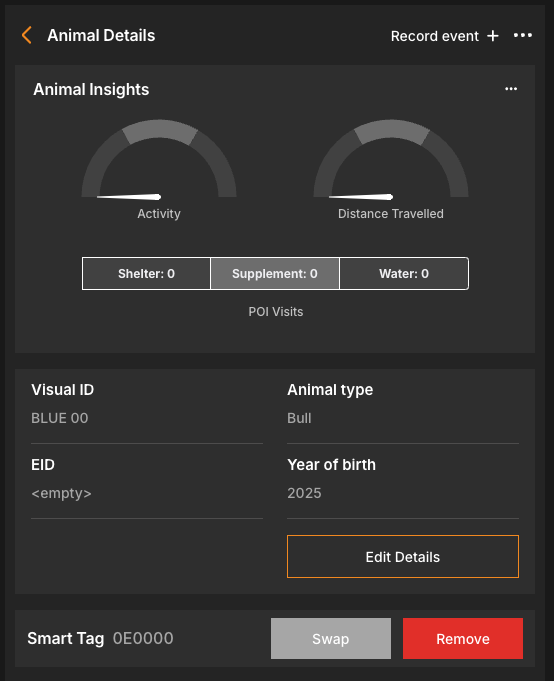
To assign a tag to an animal (or swap an animal’s assigned tag), you can click on the animal in the Animal List to view it’s details. Underneath it’s details is a “Smart Tag” section, where you can Assign, Swap or Remove the animal’s tag.
If you remove a Smart Tag from an animal, the animal will remain in your dashboard but it will no longer appear on the map or generate any alerts.
Removing an Animal
If you wish to remove an animal entirely, you can find a “Delete Animal” option in the menu on the top-right of Animal Details:
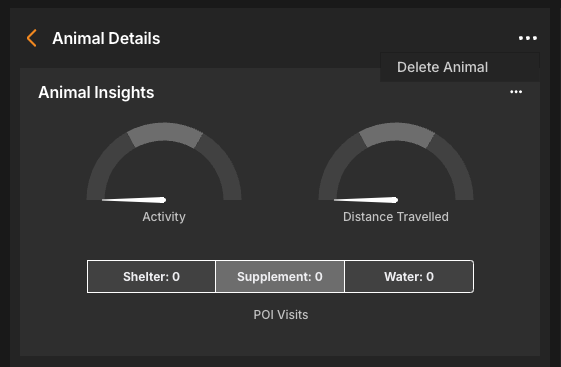
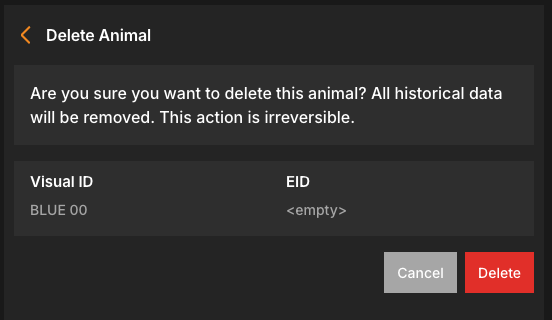
If you remove an animal with a tag currently assigned, the tag will return to the “Unassigned” section in your tag list.
Bulk Edit Animals
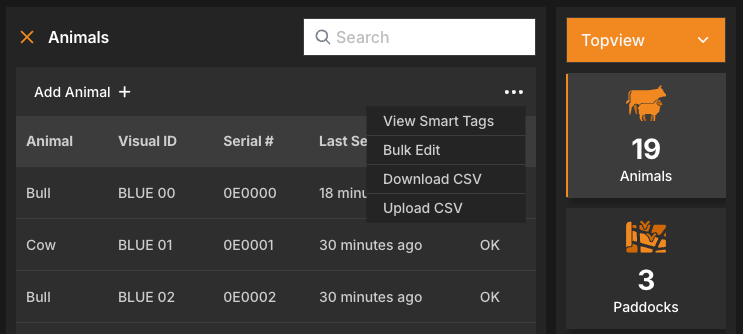
To edit multiple animals at once, there’s a “Bulk Edit” option under the Animal List menu:
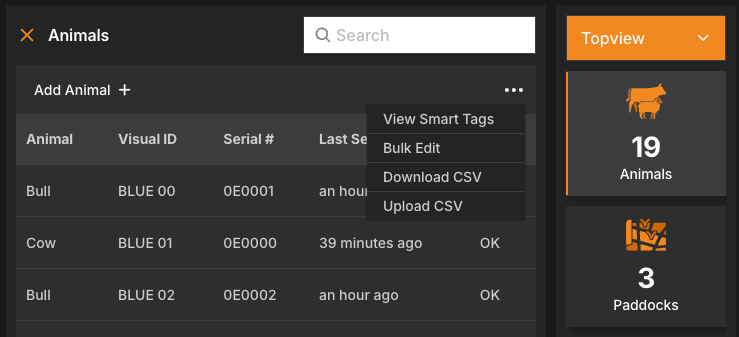
This will allow you to add/edit all of your animals at the same time and swap/remove tags as needed:
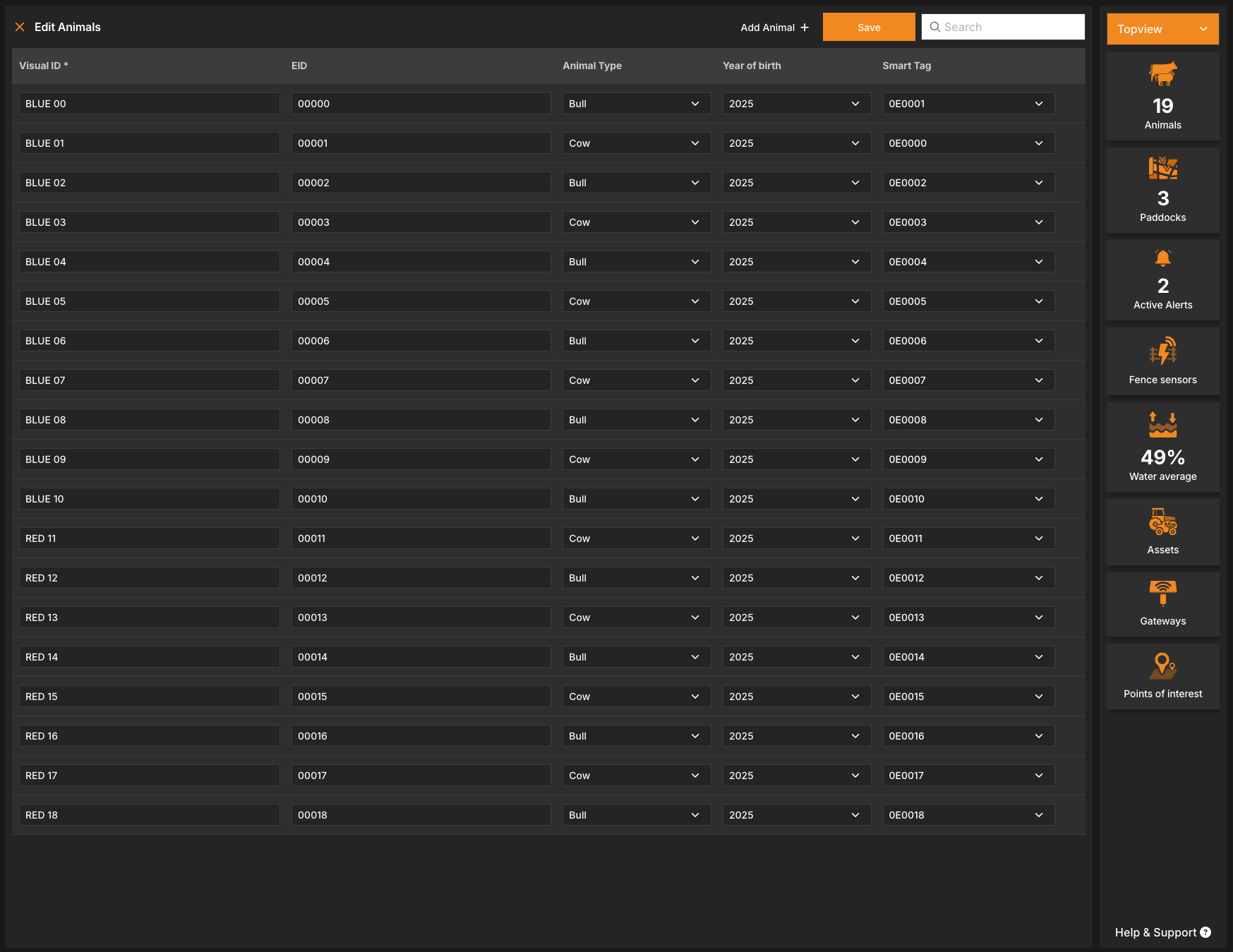
View Smart Tags
Smart Tags that are not assigned to an animal will not appear on the map by default, however you can view them by selecting “View Smart tags” from the Animal List menu:
This will show you where all your tags are, regardless of whether they are currently tagged on an animal or not: